Nebo View - Interactive Bible Atlas
The interactive Bible atlas for educators, churches, and families.
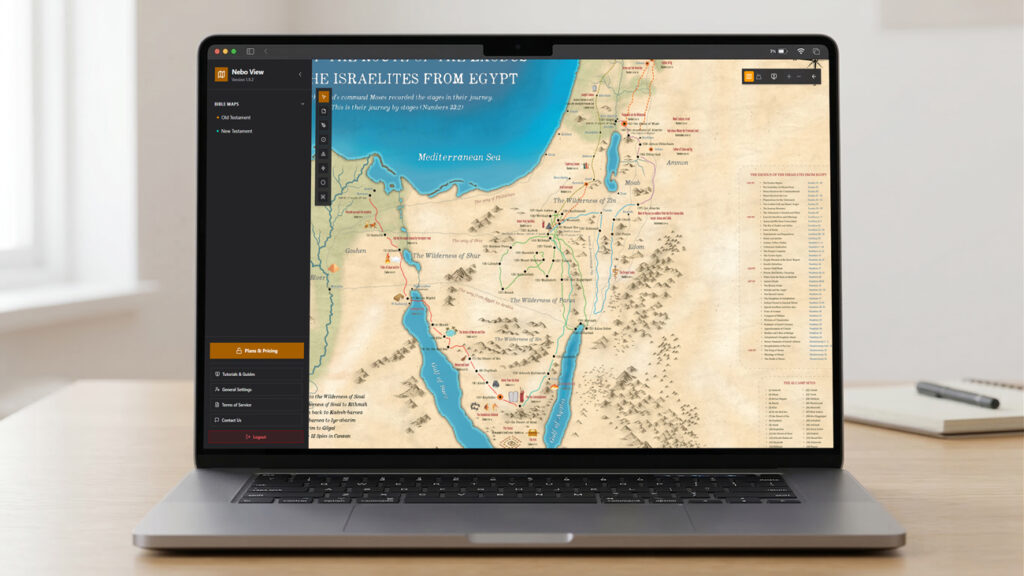
The Educator's Toolkit
A powerful suite of interactive tools designed specifically for modern ministry and classroom engagement.
Interactive Pins & Notes
Drop a pin anywhere on the map and attach deep theological notes, scriptures, or historical facts.
Smart Drawing & Routes
Trace the Exodus journey step-by-step or draw polygon boundaries to show the 12 Tribes of Israel. Your drawings, your rules.
Presentation & Laser Pointer
Activate Presentation Mode to send a clean, clutter-free map to your projector, while you use the built-in Laser Pointer to guide your audience's eyes.
Dual Map Modes: Detail vs. Blank
Instantly toggle between a fully detailed topographical map and a "Blank Map" (names removed). It’s the perfect tool for quizzing students and gamifying your classroom!
Bible Stories, Characters & Family Trees
Explore Bible stories, character profiles, and visual family trees that connect people, places, and the wider biblical story.
Bible Image Gallery
Browse the Bible Image Gallery, view images full-screen, and use presentation tools to bring lessons to life.
Trusted by Churches & Ministries Worldwide
From small Sunday school classrooms to large seminary halls,
see how Nebo View is bringing biblical history to life.
Plans & Pricing
Choose your plan below and go straight to secure checkout. Enter your email once at checkout to receive your activation license. All prices are in USD; any applicable tax is shown before payment.
Already have a license? My Account · Try the Demo
For personal study
Choose a Testament or the complete library: short-term and annual plans for one device, or the Complete 3-Year plan for two devices.
OT Annual
1 device license-
Unlock all Old Testament maps
-
Bible Lens — interactive location stories & images
-
Bible Trivia & mini-games — self-practice & presentation
-
Full Bible dictionary, concordance & measures
-
Bible Stories, Characters & Family Trees
-
Bible Image Gallery
-
Presentation mode, laser pointer & spotlight
-
Pins, notes, area selection & routes
-
Detailed & blank map views
-
Premium light & dark themes
-
Secure license login
-
Regular map & content updates
-
1 Device License
NT Annual
1 device license-
Unlock all New Testament maps
-
Bible Lens — interactive location stories & images
-
Bible Trivia & mini-games — self-practice & presentation
-
Full Bible dictionary, concordance & measures
-
Bible Stories, Characters & Family Trees
-
Bible Image Gallery
-
Presentation mode, laser pointer & spotlight
-
Pins, notes, area selection & routes
-
Detailed & blank map views
-
Premium light & dark themes
-
Secure license login
-
Regular map & content updates
-
1 Device License
Complete Annual
1 device license-
Unlock ALL maps (OT & NT)
-
Bible Lens — interactive location stories & images
-
Bible Trivia & mini-games — self-practice, presentation & live quiz
-
Full Bible dictionary, concordance & measures
-
Bible Stories, Characters & Family Trees
-
Bible Image Gallery
-
Presentation mode, laser pointer & spotlight
-
Pins, notes, area selection & routes
-
Detailed & blank map views
-
Premium light & dark themes
-
Secure license login
-
Regular map & content updates
-
1 Device License
Complete Weekly
1 device license-
Unlock ALL maps (OT & NT)
-
Full access for 7 days
-
Bible Lens — interactive location stories & images
-
Bible Trivia & mini-games — self-practice, presentation & live quiz
-
Full Bible dictionary, concordance & measures
-
Bible Stories, Characters & Family Trees
-
Bible Image Gallery
-
Presentation mode, laser pointer & spotlight
-
Pins, notes, area selection & routes
-
Detailed & blank map views
-
Premium light & dark themes
-
Secure license login
-
1 Device License
Monthly
1 device license-
Unlock ALL maps (OT & NT)
-
Bible Lens — interactive location stories & images
-
Bible Trivia & mini-games — self-practice & presentation
-
Full Bible dictionary, concordance & measures
-
Bible Stories, Characters & Family Trees
-
Bible Image Gallery
-
Presentation mode, laser pointer & spotlight
-
Pins, notes, area selection & routes
-
Detailed & blank map views
-
Premium light & dark themes
-
Secure license login
-
Regular map & content updates
-
1 Device License
Complete 3-Year
2 device license-
Unlock ALL maps (OT & NT)
-
Bible Lens — interactive location stories & images
-
Bible Trivia & mini-games — self-practice, presentation & live quiz
-
Full Bible dictionary, concordance & measures
-
Bible Stories, Characters & Family Trees
-
Bible Image Gallery
-
Presentation mode, laser pointer & spotlight
-
Pins, notes, area selection & routes
-
Detailed & blank map views
-
Premium light & dark themes
-
Secure license login
-
Regular map & content updates
-
2 Device License
For churches and groups
Multi-device access for teaching, worship, and group study.
Church Annual - 2 Devices
2 devices-
Unlock ALL maps (OT & NT)
-
Bible Lens — interactive location stories & images
-
Bible Trivia & mini-games — self-practice, presentation & live quiz
-
Full Bible dictionary, concordance & measures
-
Bible Stories, Characters & Family Trees
-
Bible Image Gallery
-
Presentation mode, laser pointer & spotlight
-
Pins, notes, area selection & routes
-
Detailed & blank map views
-
Premium light & dark themes
-
Secure license login
-
Regular map & content updates
-
Built for churches, teaching & small groups
Church Annual - 5 Devices
5 devices-
Unlock ALL maps (OT & NT)
-
Bible Lens — interactive location stories & images
-
Bible Trivia & mini-games — self-practice, presentation & live quiz
-
Full Bible dictionary, concordance & measures
-
Bible Stories, Characters & Family Trees
-
Bible Image Gallery
-
Presentation mode, laser pointer & spotlight
-
Pins, notes, area selection & routes
-
Detailed & blank map views
-
Premium light & dark themes
-
Secure license login
-
Regular map & content updates
-
Built for churches, teaching & small groups
Church 3-Year — 5 Devices
5 devices-
Unlock ALL maps (OT & NT)
-
Bible Lens — interactive location stories & images
-
Bible Trivia & mini-games — self-practice, presentation & live quiz
-
Full Bible dictionary, concordance & measures
-
Bible Stories, Characters & Family Trees
-
Bible Image Gallery
-
Presentation mode, laser pointer & spotlight
-
Pins, notes, area selection & routes
-
Detailed & blank map views
-
Premium light & dark themes
-
Secure license login
-
Regular map & content updates
-
Built for churches, teaching & small groups
-
Up to 5 Devices
Testimony
See how educators are using Nebo View to captivate their classrooms and bring the Scriptures to life.
Got questions? We're here to help
Everything you need to know about Nebo View, from choosing the right license to getting set up for your next class. If you can’t find your answer here, feel free to reach out.
Is this a one-time payment or a subscription?
Choose from weekly, monthly, annual, and 3-year licenses. Access lasts for the selected term; a 3-year license is not lifetime access. Review the current plan, price, device limit, and payment details on the pricing page before purchasing.
Do I need an internet connection to use Nebo View?
Yes. Nebo View uses an internet connection to verify your license, load maps and study content, save changes, and run Live Quiz. Keep a stable connection during teaching and test your lesson materials beforehand. Do not rely on previously loaded content as a complete offline version.
How does the Church License work?
Church Annual offers 2-device and 5-device options; Church 3-Year supports up to 5 devices for 3 years. All include Old and New Testament maps and the tools listed for the plan. Eligible Church licenses also let the owner manage teacher seats through the license portal, sending each teacher a personal activation code rather than sharing the master key.
Will it work on my computer?
Nebo View runs in a web browser. Use an up-to-date browser on Windows or macOS with a stable internet connection; no separate desktop installer is required for the web app. A larger screen and mouse are recommended for drawing and lesson preparation. Performance depends on your device, browser, and network, so try the demo on your own equipment first.
Can I share my license key with a friend?
Keep your license key private and use it within your plan’s device limit: short-term and individual annual plans support 1 device, Complete 3-Year supports 2, and Church plans support 2 or 5. For a teaching team, choose a Church plan and use the teacher-seat options when available. Do not publish your key in screenshots or lesson materials.
Can I try Nebo View before buying?
Yes. Open the application and choose View Demo on the sign-in screen. The demo offers selected maps and limited previews, with a time limit for map access. Full library access, presentation tools, and Live Quiz hosting depend on a paid license. Use the demo to check your browser, connection, and teaching setup.
How do I purchase and activate my license?
Choose a plan in the pricing section on this page and click Buy Now. You will go directly to secure Polar checkout for that plan. Enter an email address you can access and review the price and any applicable tax before paying.
After payment is confirmed, your license key and activation instructions are sent by email. Enter your key on the application’s sign-in page. Check Spam or contact [email protected] if the email does not arrive.
What if I lose my key or want to check my purchases?
Open the license portal and use the email address registered with your purchase to request your license keys. You can also sign in to My Account using a one-time email link to review your licenses and order history. Check Spam and use the original purchase email. Never post your key publicly when asking for help.
Can I move my license to a new computer?
Yes, within your plan’s device limit. Open the license portal, check your active devices, and deactivate a device you no longer use before activating the new one. Deactivation ends access on that device. If you use a teacher-seat code or cannot identify the old device, ask your Church license owner or contact support.
How do I renew an expiring license?
Open the license portal, check the expiration date, and choose the renewal option when available. Complete the renewal flow for your existing license rather than placing an unrelated new order. Once confirmed, renewal extends the existing license and keeps its key. Contact support if you need to change your plan, device allowance, or language.
Does every license include both English and Vietnamese?
Nebo View has English and Vietnamese content, but your available languages depend on the license issued for your purchase. Some licenses are restricted to one language. Check the license details before buying; changing the interface language does not override a license restriction. Contact support if your assigned language is incorrect.
What study tools are available besides Bible maps?
The application includes Bible Timeline, Bible Lens location stories, Bible Stories, Character Profiles, Family Trees, Bible Image Gallery, Dictionary & Concordance, Weights & Measures, and Bible Quiz activities. Maps also support pins, notes, routes, drawings, and detailed or blank views. Available content follows your license, language, and the options enabled in the application; Live Quiz hosting has separate plan requirements.
Which plans include Live Quiz, and do players need licenses?
New OT Annual, NT Annual, and Monthly licenses include quiz practice and presentation but do not include Live Quiz hosting. Complete Weekly, Complete Annual, Complete 3-Year, and Church plans include hosting. Check your own license’s permissions if it was issued earlier. Players join a host’s room on their phones using a PIN, link, or QR code without a separate license. The host and players need an internet connection; rooms are temporary.
Can I present maps and images on a projector?
Yes. Paid plans include presentation tools. Connect a second screen or projector, set your computer to extend the desktop, then choose Extend Display or press P where the control is available. Move the presentation window to the second display and keep the controller window open. Allow Nebo View popups if blocked, and rehearse zoom, laser pointer, and spotlight before your lesson.
How do I save my map notes and drawings?
Use the map’s Save command or Ctrl+S and wait for the save confirmation before leaving. Reopen the same map using the same license to check your work. Detailed and blank map views keep separate annotation data. Avoid editing the same map in several windows at once, and retry any failed save while your work is still open.
Where can I find guides or get help?
Open Feature Guides in the application for step-by-step instructions, including maps, Timeline, quizzes, image presentation, and license management. If something fails, use Contact Us and describe the feature, browser, device, time, and exact error. Include your order reference when relevant and hide your complete license key in screenshots.